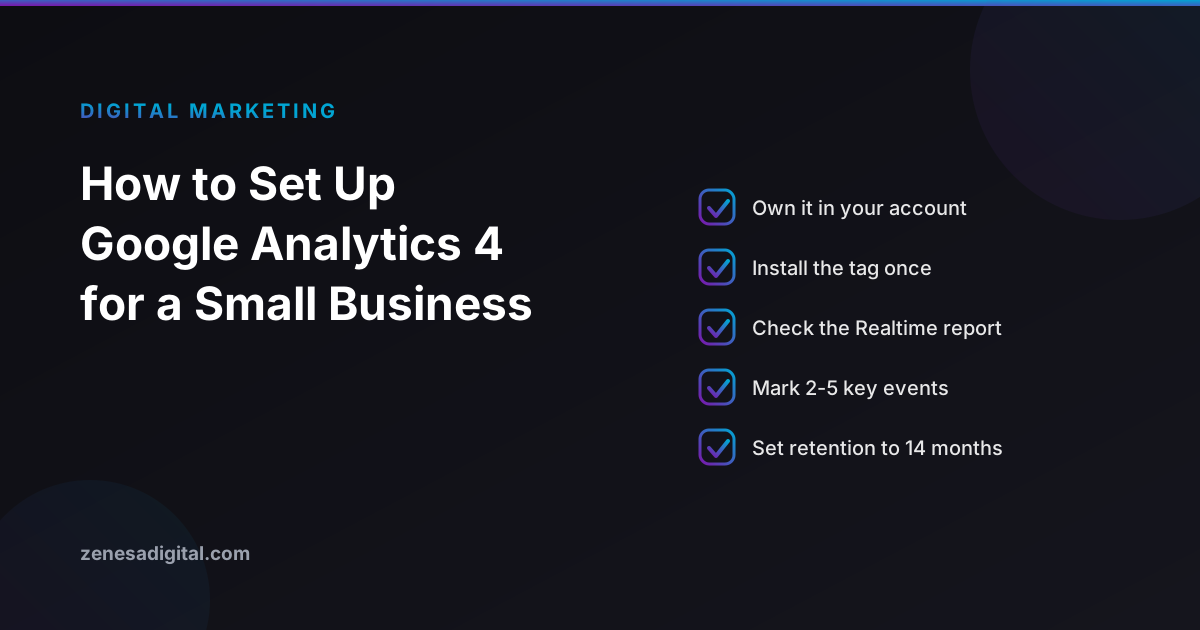
Most small business owners have been told to "get Google Analytics", and many have a half-working account that a former web developer created years ago. The free tool is genuinely useful, but only if it is under your own login, installed correctly and told which actions count as success. This guide covers all three in about an hour of work.
We build and maintain websites for a living, so we will say upfront that we can set this up for you. Nothing below requires us, though.
What Google Analytics 4 does (and does not) tell you
Google Analytics 4, usually shortened to GA4, records what visitors do on your website: which pages they view, where they came from, and which actions they complete. It does not show how your pages appear in Google results before the click. That is the job of Search Console, which we cover in our guide to setting up Google Search Console. Use both: Search Console tells you how people find you, GA4 tells you what they do next.
Step 1: Create the account under your own login
Sign in at analytics.google.com with a Google account that belongs to the business, not to a freelancer or agency. Google's setup documentation lists the stages in order: create an Analytics account, create a property, add a data stream, install the tag, then verify that data is arriving.
Ownership matters more than any setting. If an agency creates the property inside its own account and the relationship ends, you lose years of history. Create it yourself and then add the agency as a user with only the access they need. Google's documentation notes that creating a property requires the Editor role or above on the account, which is another reason the business should hold the top-level role.
Step 2: Create the property and the web data stream
A property is the container for one website's data. Give it a clear name, choose your reporting time zone and currency, and then add a web data stream with your website address. Google recommends leaving enhanced measurement switched on at this stage, and says you can go back and disable individual enhanced measurement events you do not want to collect.
When the stream is created you will see a Measurement ID. For a web stream it starts with "G-". That is the identifier your website uses to send data to the right property.
Step 3: Install the Google tag
There are three common ways to get the tag onto a site:
- Paste the snippet into the head of every page, or into the shared layout file if the site is custom-built. Developers prefer this because there is nothing extra to maintain.
- Use a plugin or built-in integration if the site runs on WordPress, Shopify or a website builder. You paste in the Measurement ID and the platform does the rest.
- Use Google Tag Manager if someone already manages tags for the site. It is more flexible, but it is another account that also needs to be owned by the business.
Whichever route you use, install the tag once. Two copies, for example a plugin plus a pasted snippet, can double-count visits and make every report unreliable.
Step 4: Confirm it works
Open your website in a normal browser window, then open the Realtime report in GA4. Your own visit should appear. Google says data collection may take up to 30 minutes to begin, so wait before assuming something is broken. If nothing shows after that, the usual causes are a mistyped Measurement ID, a tag placed only on the homepage, or an ad blocker in your own browser hiding the visit.
Step 5: Decide what counts as success
GA4 records many events automatically, but only you know which action matters to the business. Google defines a key event as an event that measures an action that is particularly important to the success of your business, and says any event you collect can become one. For a typical small business site, that short list looks like this:
- A contact or quote form submitted
- A click on the phone number or email link
- A booking or checkout completed, for ecommerce or appointment sites
- A download of a price list or brochure, if you offer one
Mark two to five of these and stop. A property with thirty "important" events tells you nothing. If you are unsure which actions deserve the label, start with the one that makes you money and work backwards.
Step 6: Check the settings people forget
- Data retention. Google's documentation lists 2 months or 14 months for event data retention on standard properties. Open the setting and choose 14 months, so year-on-year comparisons still work.
- Your own traffic. Staff visits can distort a small site's numbers. GA4 has an internal traffic filter you can configure once your office IP address is known.
- Users and access. Review who has access every quarter. Remove anyone who no longer works with you.
- Search Console link. Link the two products so you can see search performance next to behaviour.
- Privacy. Make sure your privacy policy describes analytics, and find out which consent rules apply to visitors from your region. That depends on where your customers are, and it is a question for a qualified adviser rather than a blog post.
What to look at each month
Ignore the dozens of reports and keep a monthly routine of four questions:
- How many people reached the site, and from which channels (search, social, direct, referrals)?
- Which pages brought in the most visitors, and did those visitors reach a key event?
- Which pages lose visitors quickly, especially on mobile?
- How many key events happened, and is the trend rising or falling?
Write the answers in a spreadsheet. The habit of comparing month to month is worth far more than any single report. If you are paying for marketing, compare these numbers against what you are spending; our guide on SEO versus Google Ads explains why organic and paid traffic need different yardsticks.
Common mistakes
- Someone else owns the property. Fix it now, while the relationship is good.
- Duplicate tags. Two installs, doubled numbers.
- No key events. Traffic without outcomes is vanity.
- Treating small numbers as trends. A site with a few hundred monthly visits will swing wildly; look at three months, not three days.
When to ask for help
If your site is custom-built, uses a checkout, or runs several domains, event tracking becomes a development task rather than a settings page. That is where an agency earns its fee. Our SEO services and digital marketing work include analytics setup under your own account, and the same applies when we build a new website. To talk it through, contact us.